5 Essential Canva Hacks for Selling Digital Products That Save You Hours
Ever open your Etsy dashboard and feel like your to-do list is judging you? You’ve got ideas in your head, cold coffee on your desk, and about a dozen half-finished projects staring back. Same here.
The good news? Canva makes it easy to turn all that chaos into finished, sellable products. With the right Canva shortcuts and hacks, you’ll save time and your sanity.
I pulled together 5 quick Canva hacks for selling digital products that’ll help you work smarter, not harder. We’re talking instant bundles, stress-free branding, easy image fixes, and mockups that look pro in minutes.
If you’re a busy creative (or a certified tab hoarder like me), these tips are about to be your secret weapon. They’ll help you hit publish faster, because honestly, done is better than perfect.
Table of Contents
Before we dive in: a quick heads-up many of these shortcuts are part of Canva Pro. The free version still gives you plenty to work with, but some features (like Magic Resize, Brand Kit, and Background Remover) are exclusive to Pro users.
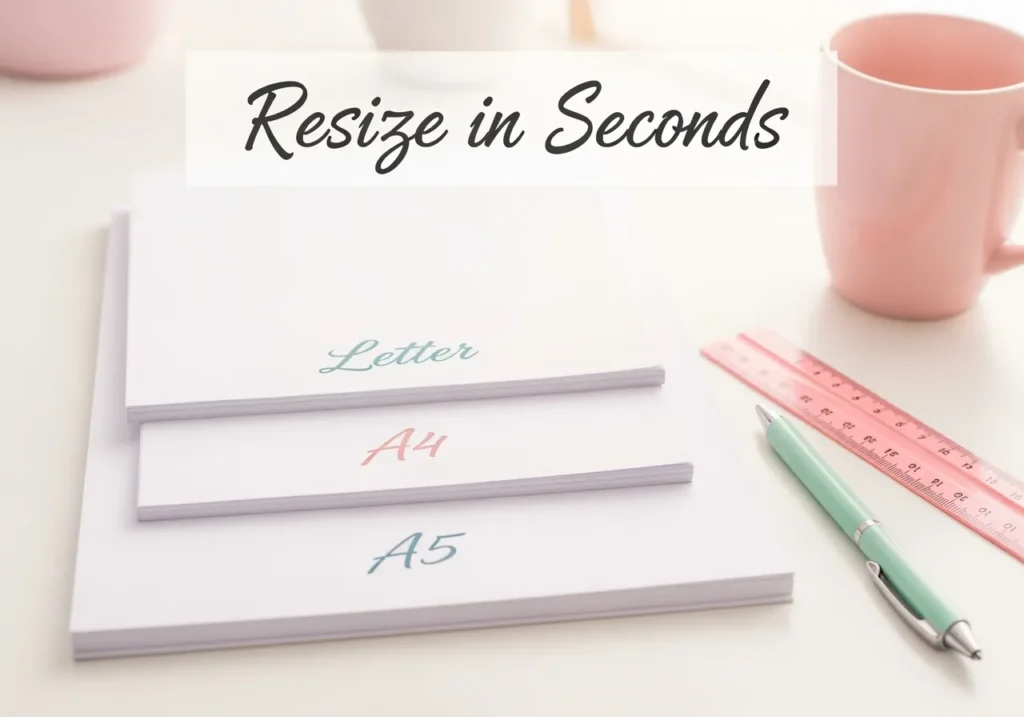
Hack 1: Canva Magic Resize — One of the Best Canva Hacks for Selling Digital Products
Let’s be real. No one wants to rebuild the same design five times just to fit new sizes. That’s where Canva’s Magic Resize saves the day. One click, and your design reshapes itself like magic.
If you’re still figuring out what to make, check out my post 10 Easy Canva Digital Products to Sell. It’s packed with beginner ideas like planners, wall art, and games that work perfectly with this hack.
👉 Already have a design ready? Magic Resize instantly adapts it for any format—Pinterest pins, A4 pages, social posts, you name it.
Then, when you’re ready to try it yourself, watch Canva’s Design School tutorial on Magic Resize for quick, real examples.
The first time I tried it, I thought, “Did I just make five products at once?” What used to take hours turned into a complete product bundle in minutes. This is one of those Canva shortcuts you’ll wish you found sooner.
Why it’s a sanity-saver:
- No more rework. Skip the manual resizing circus.
- Consistency on autopilot. Fonts, colors, and layouts stay locked in.
- More listings, less time. One design = multiple formats, ready for buyers.
Pro tip: Start with your most detailed layout. Magic Resize takes care of the rest, and suddenly you’ve got products in every format your shop needs.
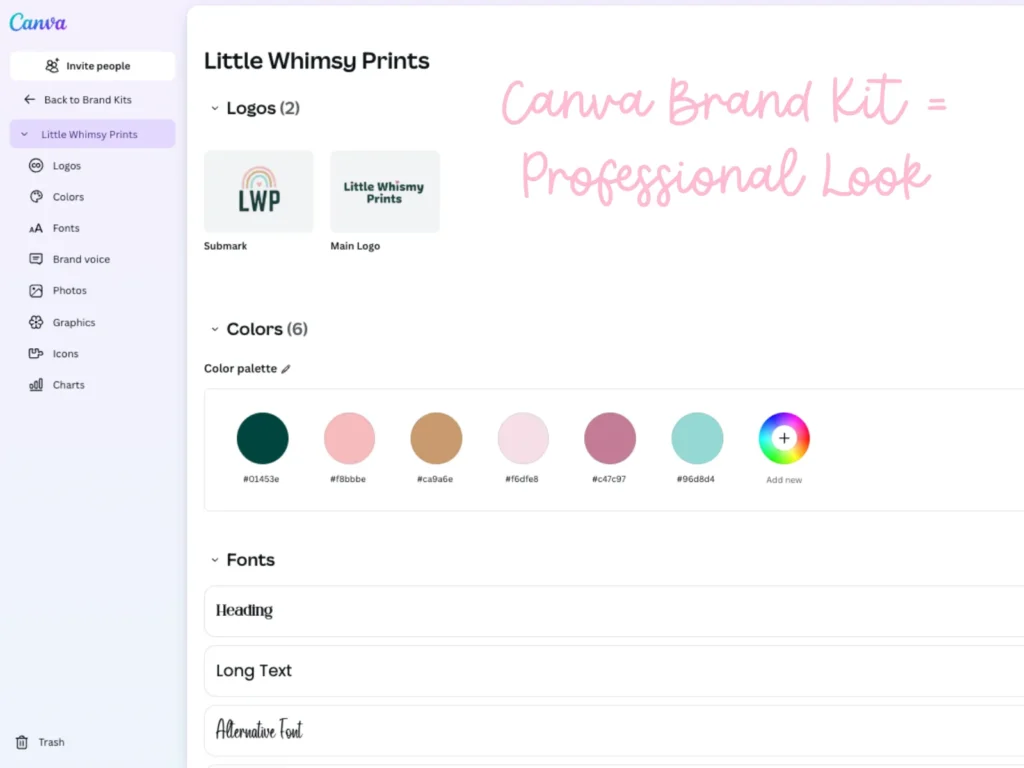
Hack 2: Set Up Your Brand Kit for Consistent, Professional Designs Every Time
Raise your hand if you’ve ever spent 20 minutes trying to remember which pink you used. 🙋♀️ Same. That’s why Canva’s Brand Kit is a game-changer. It keeps your fonts, colors, and logos in one place, ready to click and go.
When I set mine up, it felt like unlocking an organized craft room. Every design looked consistent, and I finally stopped asking, “Was that font size 18 or 20?”
Add these to your Brand Kit:
- Main logo (plus a small version)
- 3–6 brand colors with hex codes
- Two fonts for headlines and body text
- Quick note on imagery style or tone
Why it’s worth 10 minutes:
- No guessing. Everything matches.
- Faster designs. Apply styles in one click.
- Professional look. Your shop feels cohesive and polished.
Once it’s set up, every product you make feels on-brand and effortless.
Hack 3: Elevate Your Designs with Canva Elements, Frames, and Magic Edit
You don’t need to reinvent the wheel to make your designs look good. Canva’s tools like Elements, Frames, and Magic Edit do the heavy lifting. They’re your layout glue, instant polish, and quick fixers.
Once, I used a color palette I thought was perfect until two colors clashed. Instead of fixing each one by hand, Canva’s color-change feature swapped them all at once. Crisis averted.
How these tools help:
- Elements = structure. Clean, balanced layouts.
- Frames = polish. Drop images into shapes, done.
- Magic Edit = fixer. Brush, type, and poof, it’s fixed.
Want your listing images to pop? Drop your design into a frame, add icons, and finish with a bold headline. It’ll look pro-level without the price tag.

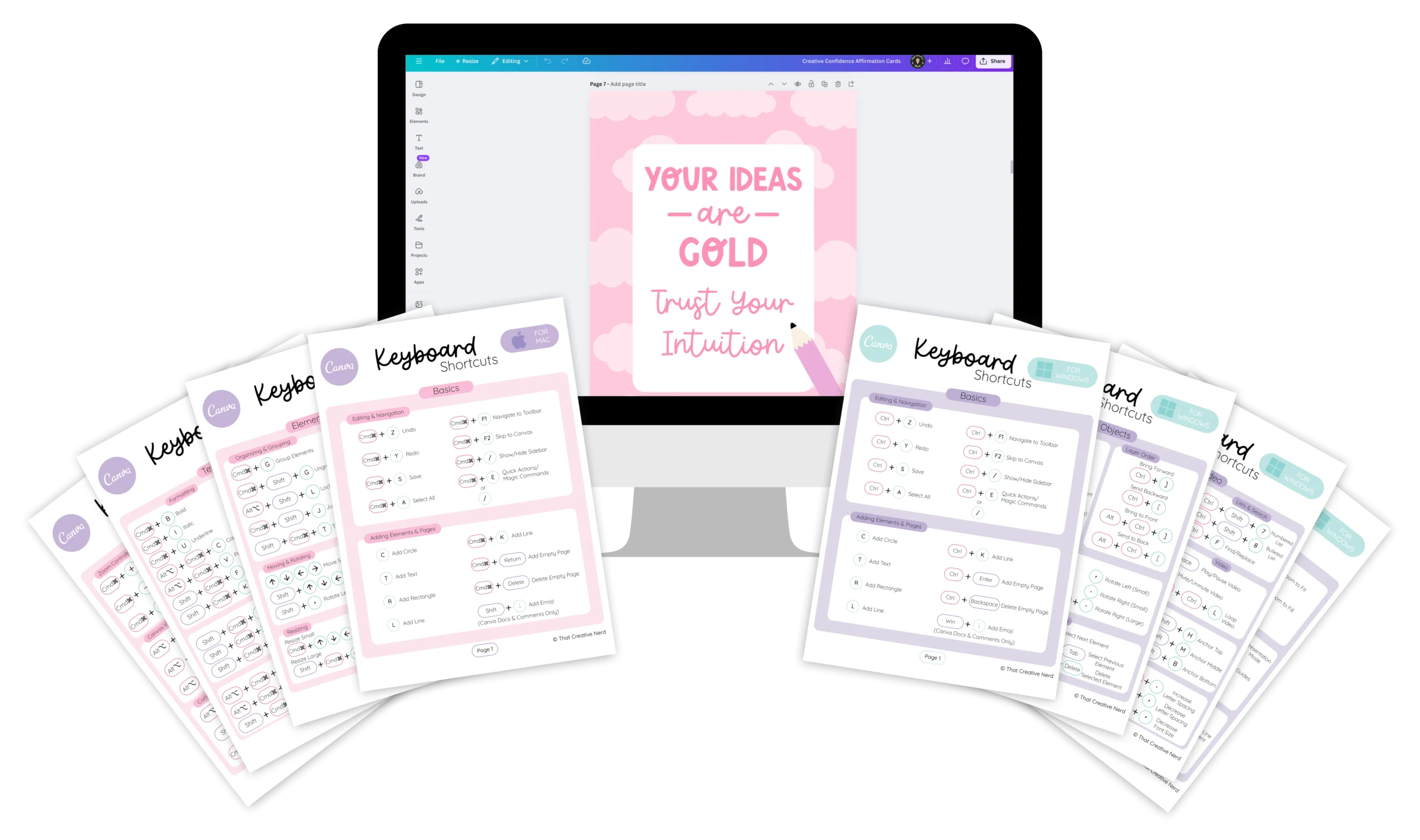
Learn the shortcuts. Make designing simple.
Build your Canva confidence with shortcuts that make designing feel simple and fun.
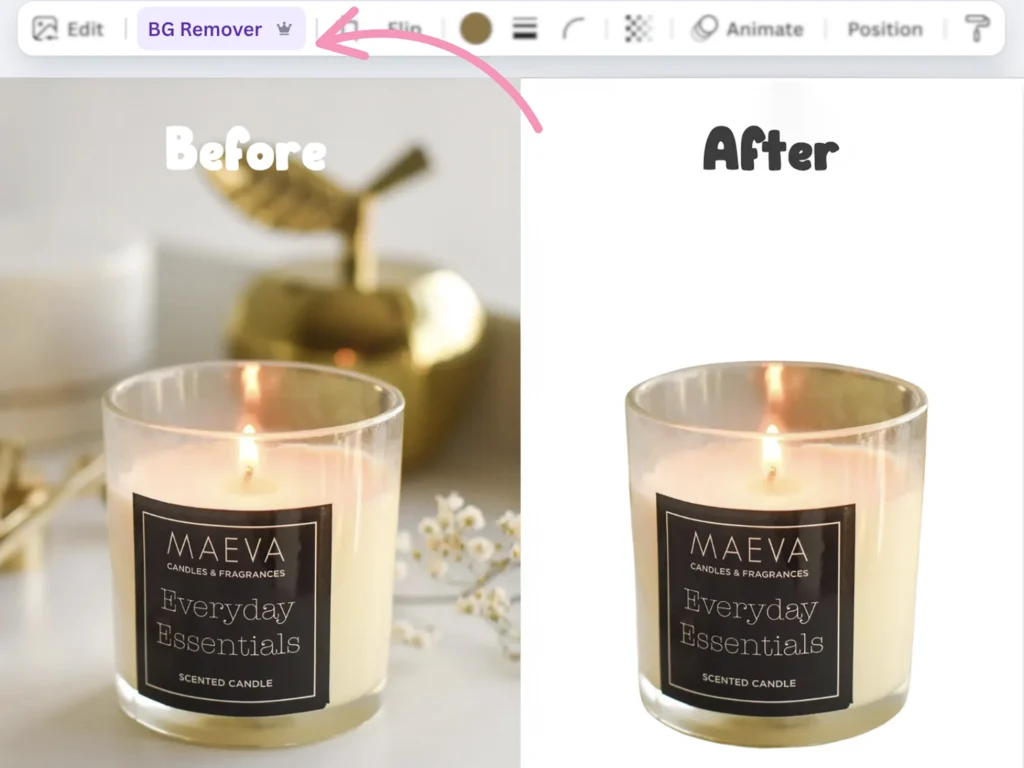
Hack 4: Polish Product Images with Background Remover and Smart Mockups
Your product images can make or break a sale. A decent design with a great mockup often beats a perfect design with a bad photo. Canva’s Background Remover and Smart Mockups make it easy to create professional images without fancy lighting or props.
When I made some stationery I loved, friends asked where I bought it. The secret wasn’t just the design, it was the mockup. That’s when I realized mockups sell the vibe, not just the product.
How these tools help:
- Background Remover = clarity. Cut the clutter so your product stands out.
- Smart Mockups = trust. Drop your design on real objects buyers can imagine using.
Try this flow:
- Remove the background.
- Add a soft shadow.
- Drop into two mockups, one simple and one lifestyle.
- Add a short headline or key features.
The result is scroll-stopping, believable product photos that look professional without the stress.
For more ideas, check out Canva’s Background Remover guide for creative ways to polish your images.
Hack 5: Speed Up Creation with Canva's AI Tools
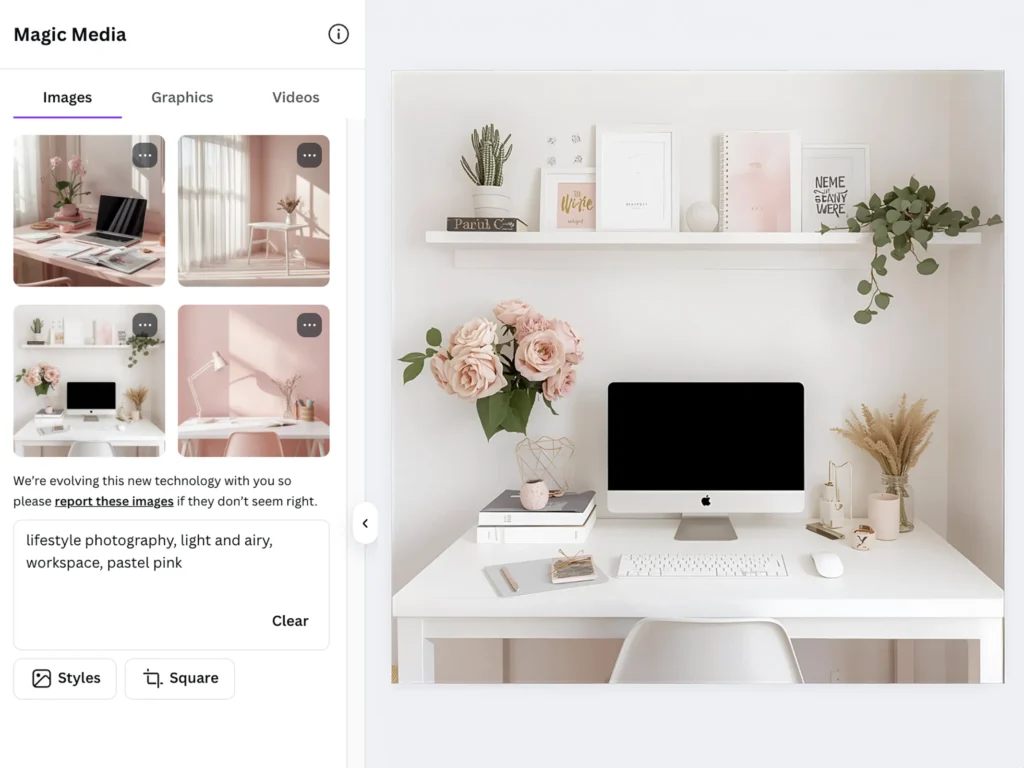
Sometimes the hardest part isn’t designing, it’s knowing what to write or find. Canva’s Magic Write and Text-to-Image beat blank-page panic fast. Create descriptions, prompts, icons, or backgrounds in minutes.
I once listed a design that wasn’t perfect, but it sold. Buyers want useful and appealing, not perfect. These Canva AI tools help you get to done faster so you don’t stay stuck editing forever.
How Magic Write helps:
- Drafts product descriptions, feature lists, and headlines in seconds — one of the most underrated Canva tips for entrepreneurs.
- Gives you a starting point so you’re editing instead of inventing.
- Keeps your tone consistent when you use repeatable prompts.
How Text-to-Image helps:
- Creates custom graphics when stock photos just don’t fit.
- Fills in icons, patterns, or themed visuals to match your product line.
- Keeps your art style cohesive across multiple designs.
The magic happens when you use both. Outline with Magic Write, then create matching icons or backgrounds with Text-to-Image. What once took hours now fits into one creative sprint.
Love time-saving hacks? Check out Canva’s roundup of 10 Canva tips, tricks, and hacks to save you time. It’s full of quick wins to speed up your workflow.
AI doesn’t replace creativity, it keeps it moving. Getting your work out there beats waiting for perfect inspiration. If perfectionism holds you back, read how to overcome perfectionism in creativity to let go of overthinking and hit publish with ease.
Canva Hacks That Help You Sell Smarter, Not Harder
These five Canva hacks will save you time, cut busywork, and make your shop look polished. From Magic Resize and the Brand Kit to Magic Write and Canva’s AI tools, they help you spend less time tweaking and more time selling.
Need ideas? Check out 10 Easy Canva Digital Products to Sell (Even If You’re Just Getting Started). It’s full of beginner-friendly products you can create with these same hacks.
Start small. Pick one hack, set a 15-minute timer, and try it today. Progress comes from small steps, not perfection.
Your buyers aren’t waiting for perfect. They’re waiting for you. Open Canva, test one hack, and see how much easier creating and selling becomes.
Can’t get enough Canva hacks? 🙋♀️ Same. Canva’s put together 10 extra time-saving tips that’ll keep your workflow running smoothly.
Did you enjoy these Canva hacks? Don’t forget to save this post to Pinterest so you can come back any time. I’ve made it easy — just grab one of the three pin-ready images below and add it to your favorite board. That way you’ll always have these time-saving shortcuts at your fingertips.