Turn Your Sketch into AI Art in ChatGPT: Easy Guide
Want to turn your sketch into AI art with ChatGPT, but not sure where to start? Maybe you have a picture in your head, but every time you describe it, the flower lands in the wrong spot or the layout looks different. A few wobbly lines can help you show what you mean.
A quick sketch can help you show ChatGPT what you mean. And by quick sketch, I mean a few shapes and some wobbly lines. You’ll see mine below, so we’re definitely not aiming for perfection. 😂
In this tutorial, you’ll learn how to turn a sketch into AI art in ChatGPT, from drawing your idea with @sketch to creating a colorful storybook illustration. Whether you’re creating for fun or exploring an idea for a digital product, you can follow along with a sketch of your own.
Why start with a sketch?
Sometimes drawing your idea is easier than finding the words for it. Your sketch shows ChatGPT what you want in the picture and where you want it to go.
For my example, I wanted a tree on the left, a cloud near the top right, a little bird in a nest, and a pink flower below. My sketch gave those pieces a place to go. The written instructions could then explain the style.
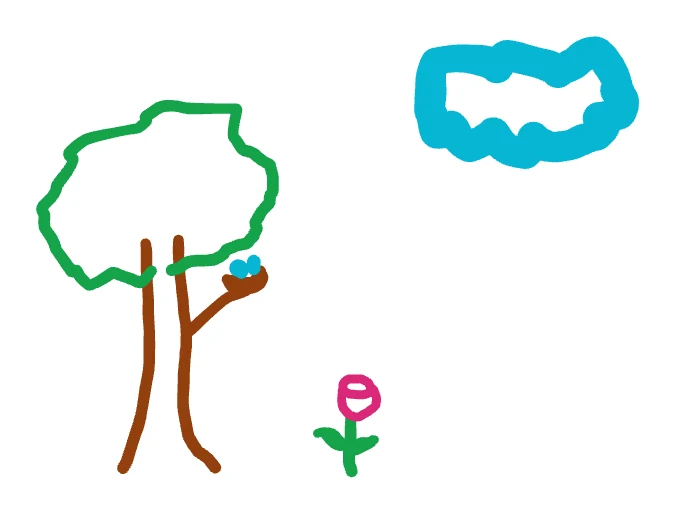
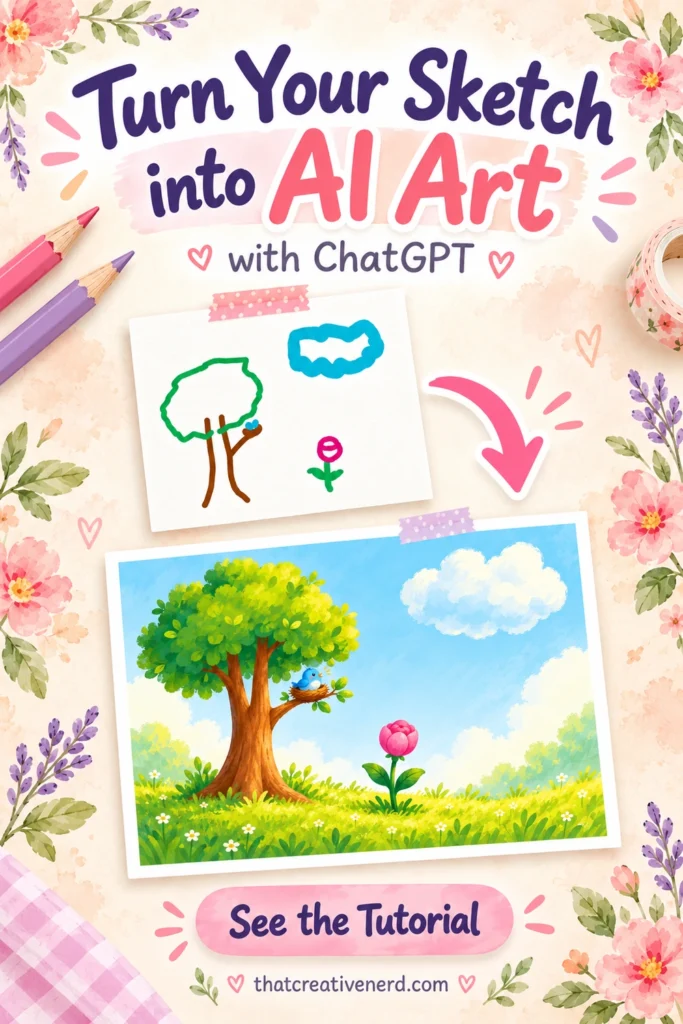
My original sketch. A few colored lines show the subjects and where I want them.
Your tree might look like broccoli on a stick. That’s okay. Mine isn’t heading to an art museum either. 😂
Draw the objects you want and put them where you want them. That’s enough to start. If you catch yourself trying to perfect every mark, my post about perfectionism in creativity can help you step out of the endless tweaking loop.
How to draw a sketch in ChatGPT
Start by opening ChatGPT and choosing one simple idea. A flower in a pot or a mushroom house works well for a first experiment.
1. Open the Sketch tool
In the message box, type @ and select Sketch when it appears.
This opens the drawing area shown in my video. If your interface looks different or Sketch isn’t available, OpenAI’s guide to images in ChatGPT includes its documented sketch workflow on the mobile app.
You can also draw in another app or on paper, save or photograph your sketch, and attach the image to your conversation.
2. Draw the main shapes
Begin with the largest object, then add the smaller pieces around it.
I started with the tree trunk and the outline of the leaves. Then I added the little nest and bird, the cloud, and the flower. Color helped distinguish the pieces without adding much detail.
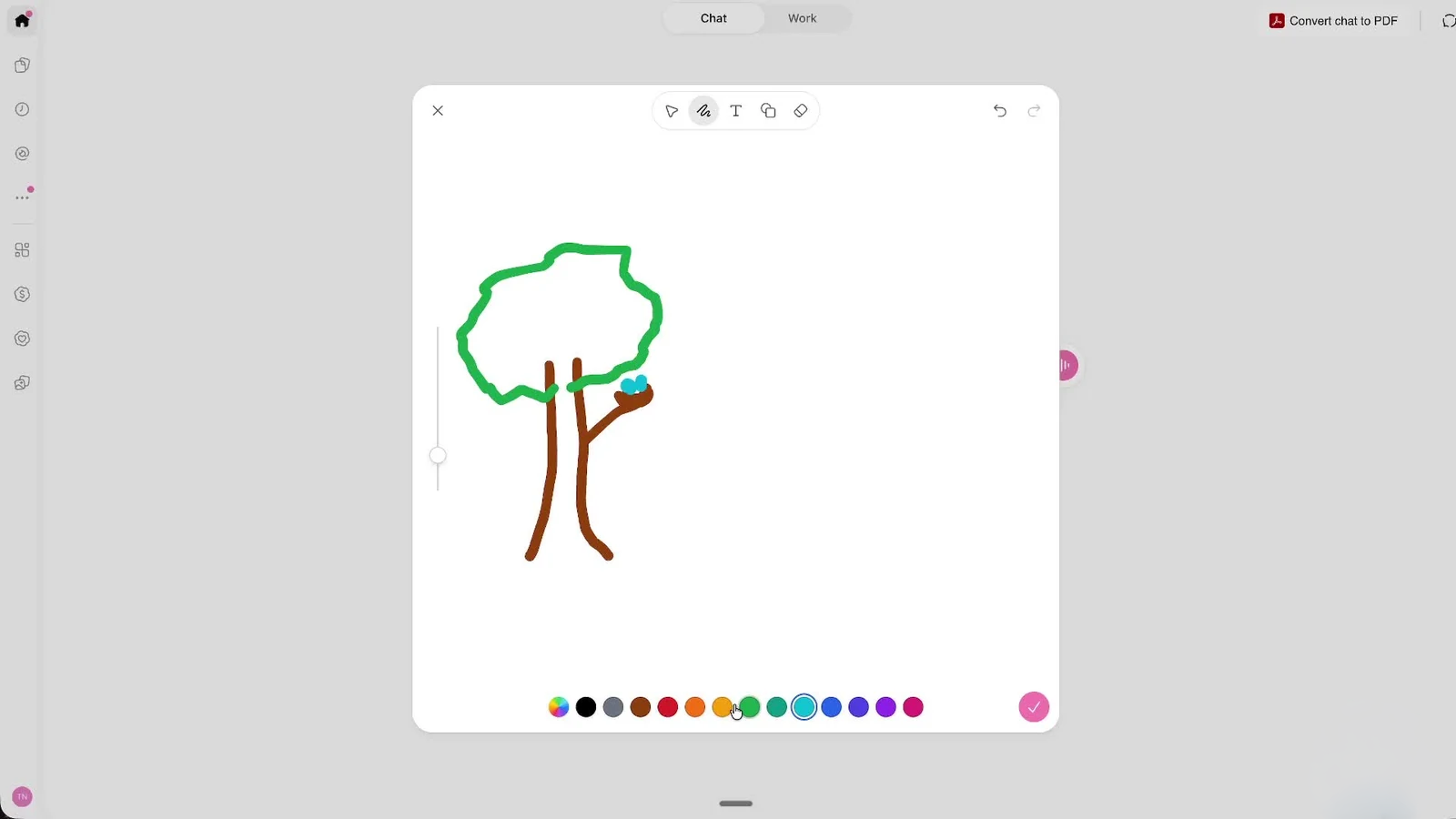
Drawing the tree and nest in ChatGPT. The color choices and drawing controls are visible around the canvas.
Think about where each part belongs. If you want a cloud in the upper-right corner, draw it there. If the flower should be smaller than the tree, show that difference in your sketch.
ChatGPT uses your drawing as a guide. It may make things bigger or smaller, or add details. We’ll check those once the picture is ready.
3. Confirm your sketch
Happy with your sketch? Select the checkmark. Your drawing will appear in the message box, ready for the next step.
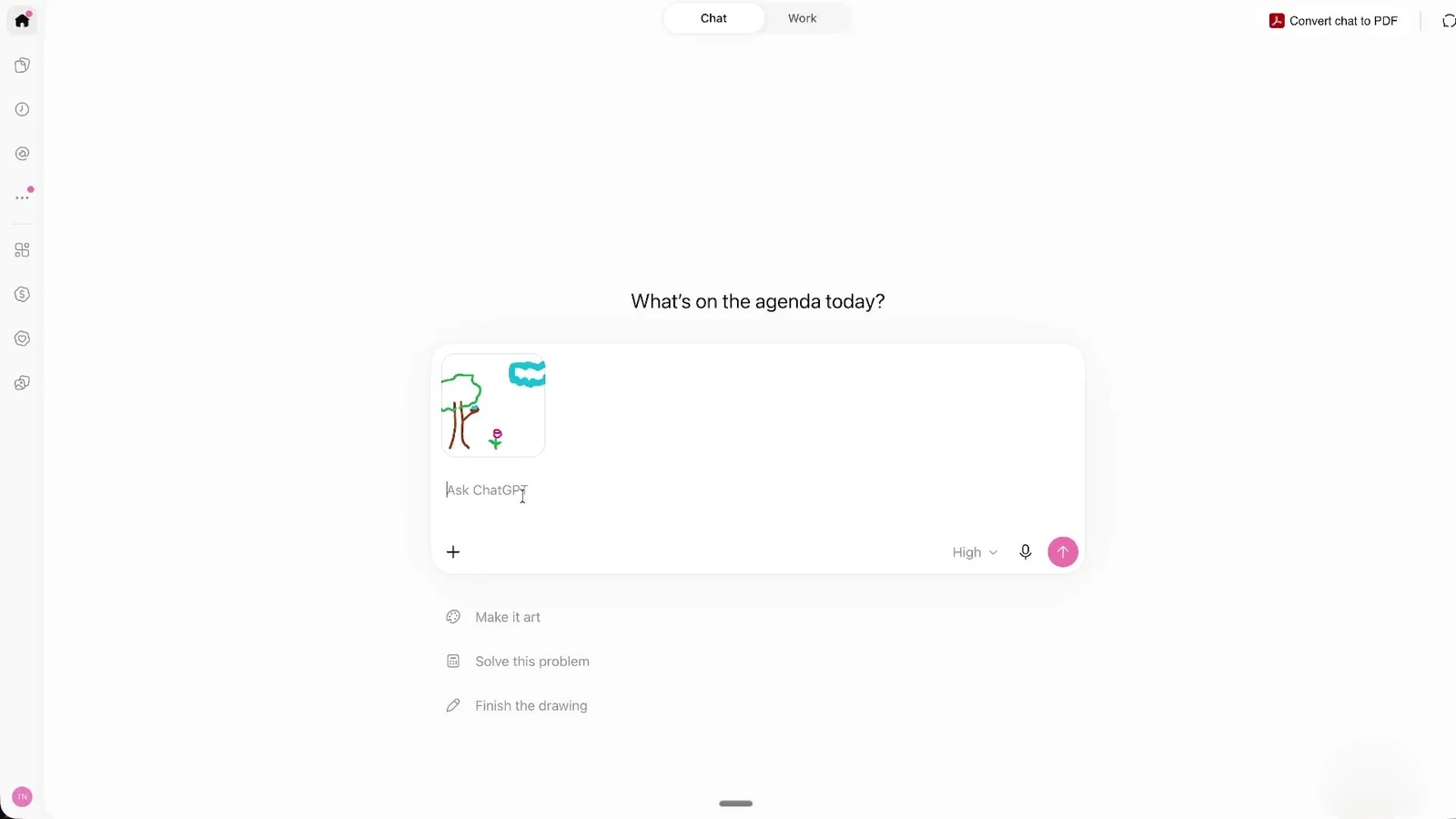
My sketch is now in the message box. This is where you can add words to explain the picture you want.
Turn your sketch into AI art with a simple prompt
Your sketch shows where things go. Your words explain how you want the finished picture to look.
Think of it like ordering a cake. The sketch shows the shape. Your prompt says, “Make it pink with flowers.” You don’t need a fancy recipe to explain what you’re after.
Choose a style you’d like to try, such as a colorful storybook illustration, soft watercolor, or a simple cartoon. Then mention any details that are important to keep.
Not sure which art style to try? My free AI Art Style Library can help you find a look you love. Pick a style, add it to your prompt, and give your sketch a little personality. 🌸
Here’s an example prompt you can copy and adapt:
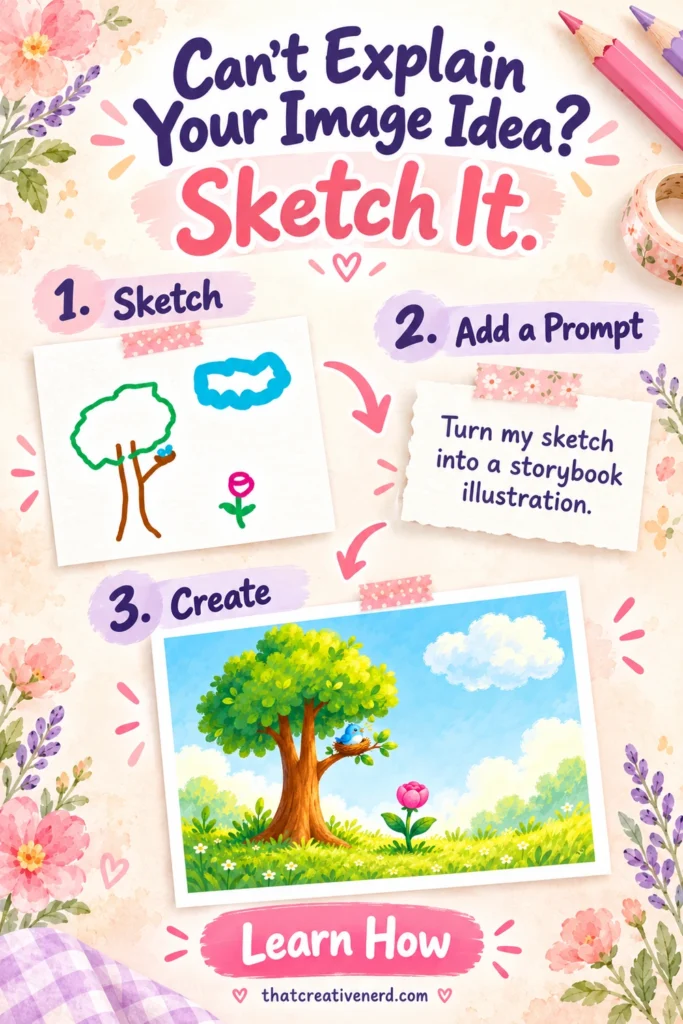
Turn my sketch into a colorful storybook illustration with soft painted textures. Use my drawing as a guide for the layout. Include the tree on the left, a little blue bird in its nest on the branch, a white cloud near the top right, and a pink flower below. Add a cheerful meadow setting. No text.
This is an example you can use for the scene shown here. For your own sketch, replace the subjects, positions, and style with what you want.
A shorter version works too:
Turn my sketch into a [style] illustration. Use the drawing as a guide for the layout. Include [important subjects] and use [colors]. Keep [specific details].
Send your message and wait for ChatGPT to make the picture. This can take a few minutes. Time for a sip of your coffee before it becomes iced coffee. If it first asks whether you want it to turn the sketch into artwork, check its description and confirm or correct it.
My sketch to image result
Here’s the finished illustration from my example:
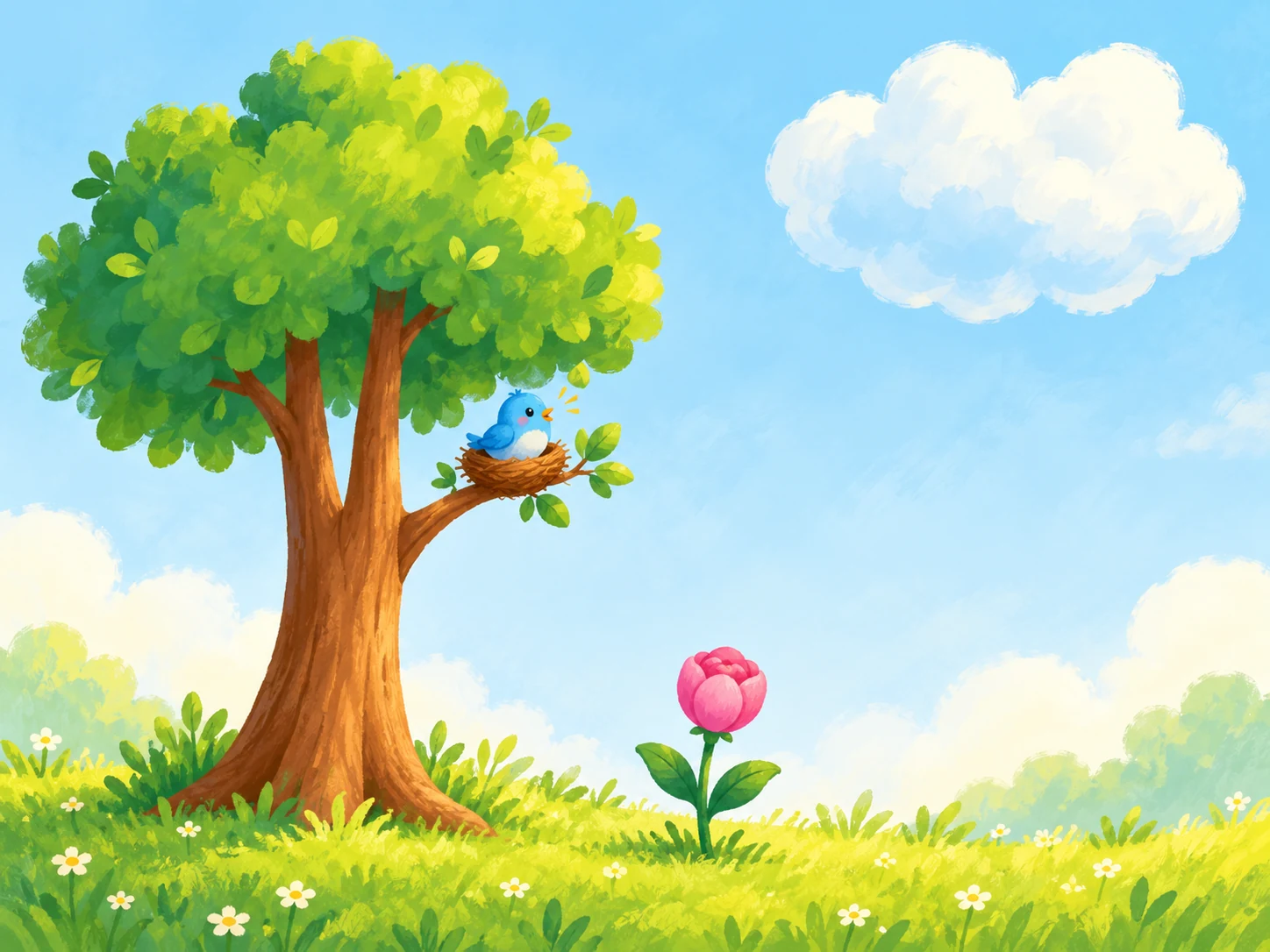
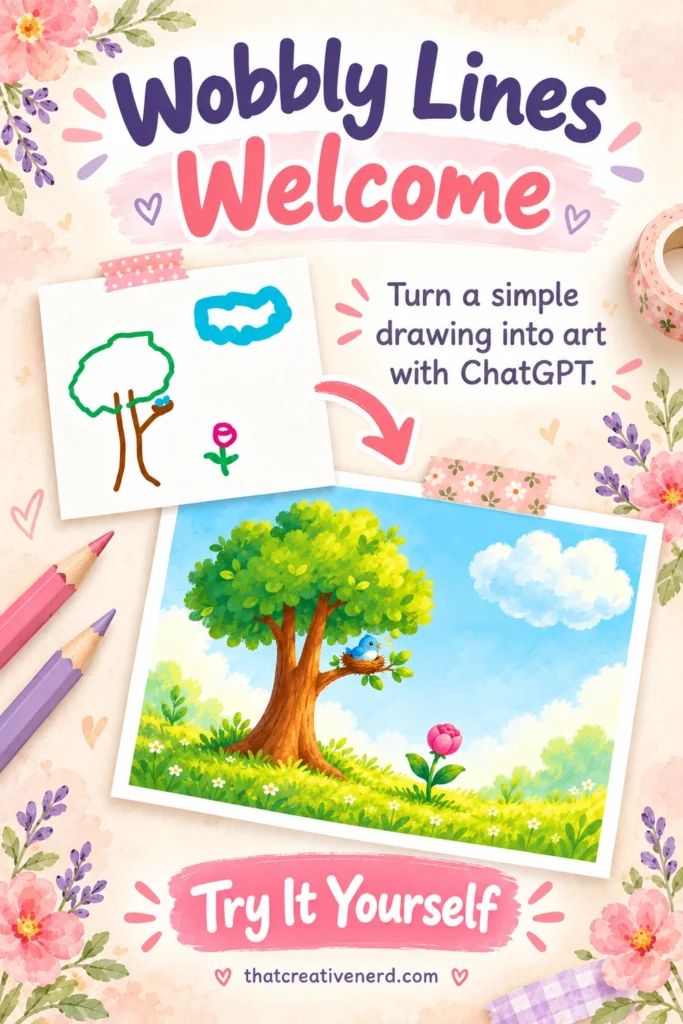
The finished scene includes a leafy tree, a little blue bird in its nest, a white cloud, and a pink flower.
My wobbly tree became a leafy tree in a sunny meadow. The blue bird got a nest, and the pink flower got its moment to bloom.
The picture has more detail, but the main pieces are still in similar places. You can see how the sketch helped guide the result.
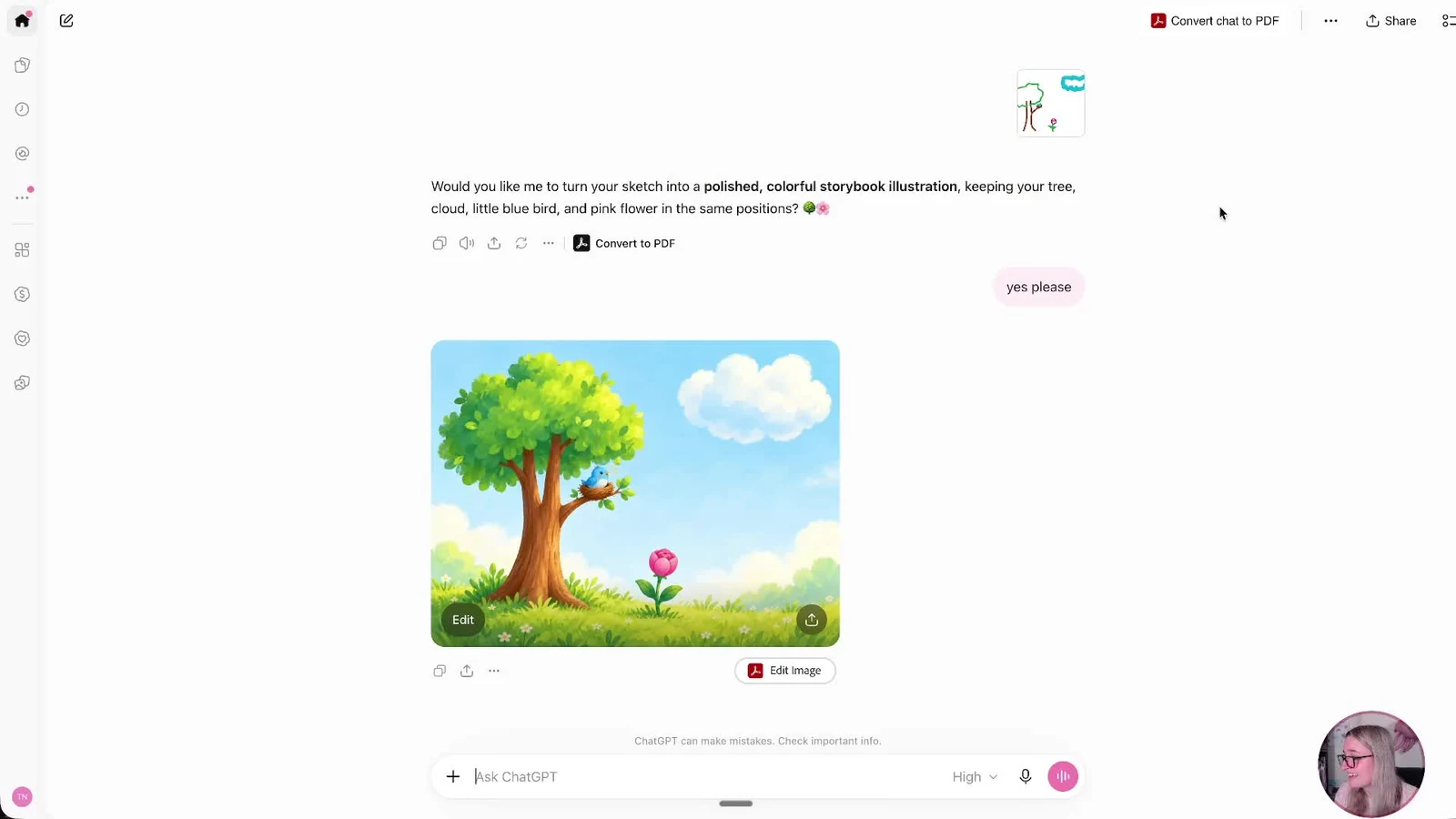
The finished picture appears in the conversation. You can ask for a change or save the image from here.
That’s the part I like about this process. You can start with your own visual idea, even when you don’t have the words for every detail yet.
Before using your result, compare it with the sketch. Check that the important subjects are included, the arrangement makes sense, and there aren’t any odd details you want to fix.
What if the image needs a change?
Like most of your picture, but one part looks off? Ask for a small change in the same chat. No need to send the whole idea back to the drawing board.
For example:
Make the pink flower smaller. Keep the tree, bird, cloud, and painted style as close to the current image as possible.
Or:
Remove the extra flowers from the meadow. Keep the single pink flower as the main flower.
Take a peek at the whole picture after each change. Sometimes ChatGPT gets a little enthusiastic and changes something else too. OpenAI’s image creation and editing guide explains the editing options if you want to try selecting a particular area.
Once you’ve turned your sketch into AI art and you’re happy with the result, use the image’s save or download option to keep a copy on your device.
Questions about turning a sketch into an image
Try it with one idea of your own
You don’t need a complicated scene to try this. Draw a cat beside a book, a little cottage, or a flower in a mug. Give the main shapes a place, choose a style, and see how ChatGPT interprets your idea.
For your first try, turn one simple sketch into AI art. Draw a few shapes, choose a style, and make one image. That’s your whole job.
You don’t have to know exactly how it will turn out. Give your idea a chance to surprise you. A little practice can make the next picture feel easier.
🌸 I’d love to see what you make! Join our free creative community and share your original sketch next to the finished image. Whether you’re creating for fun or working toward a digital product, your wobbly-line starting point is welcome.
Pin this for later you
Save one of the pins below so you can come back when you’re ready to turn your sketch into AI art with ChatGPT. Wobbly lines welcome! ✏️